
Docs
Contacts
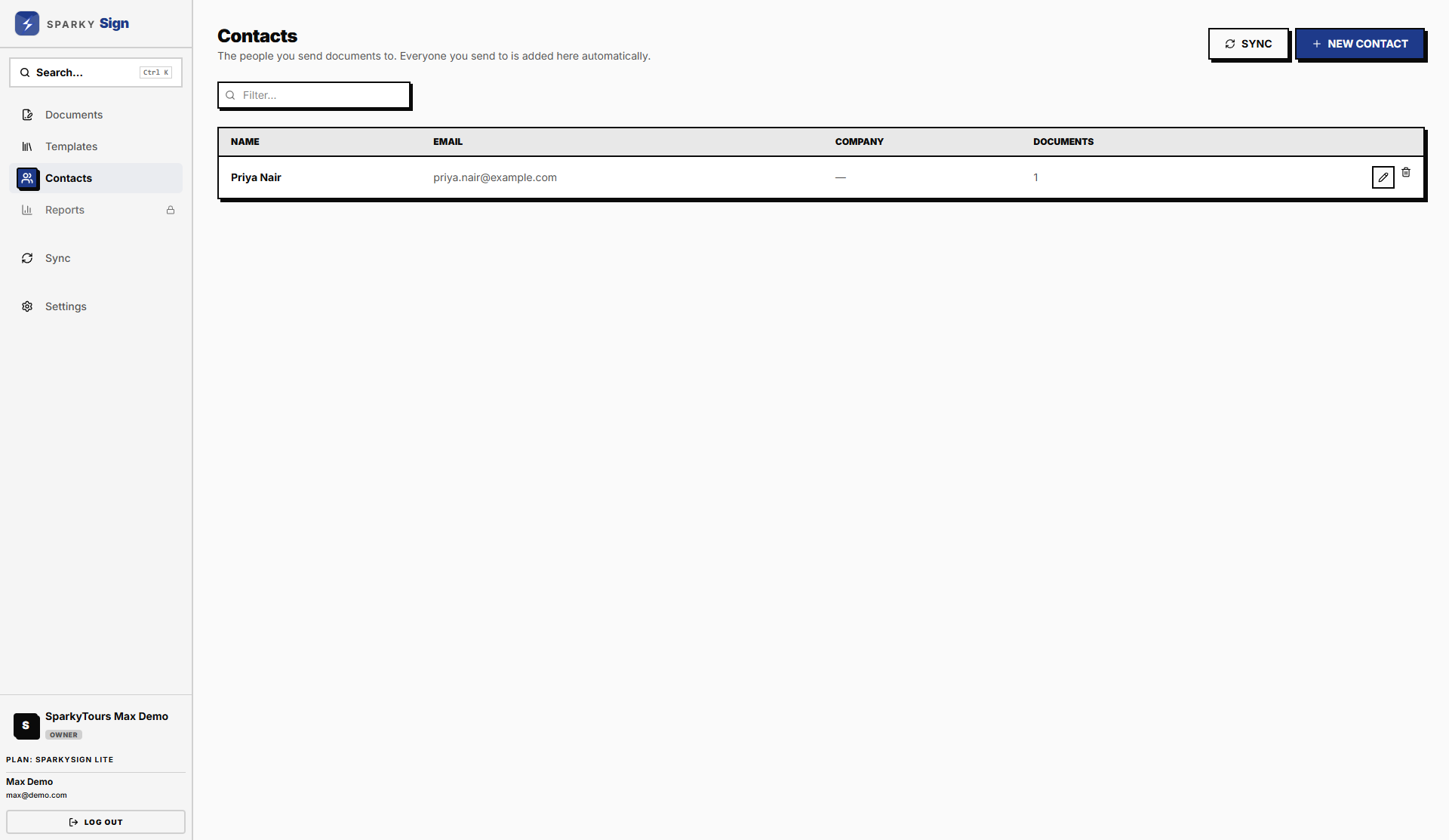
The people you send documents to, kept in one list so you do not retype them.
How the list fills up
Whenever you send a document, its signers are added to Contacts if they are not there already. You can also add people yourself with New Contact: a name, and optionally an email, company and phone.
How to use a contact
When adding a signer to a document, start typing a name and pick the contact. In Send to Many, tick contacts instead of typing them.
How to edit or remove a contact
Use the edit and remove buttons on the contact's row. Removing a contact does not change any document already sent to them.
Bringing in contacts from SparkyContacts
If your organization also uses SparkyContacts, see Sync.