
Signing a document
What the people you send a document to see, and how anyone can check a signed copy.
What a signer does
A signer needs no account and installs nothing.
- They open the link in the email.
- If you asked for it, they enter a 6-digit code sent to the same email address.
- They read the document.
- They type their name as their signature, tick the box agreeing to sign electronically, and choose Sign.
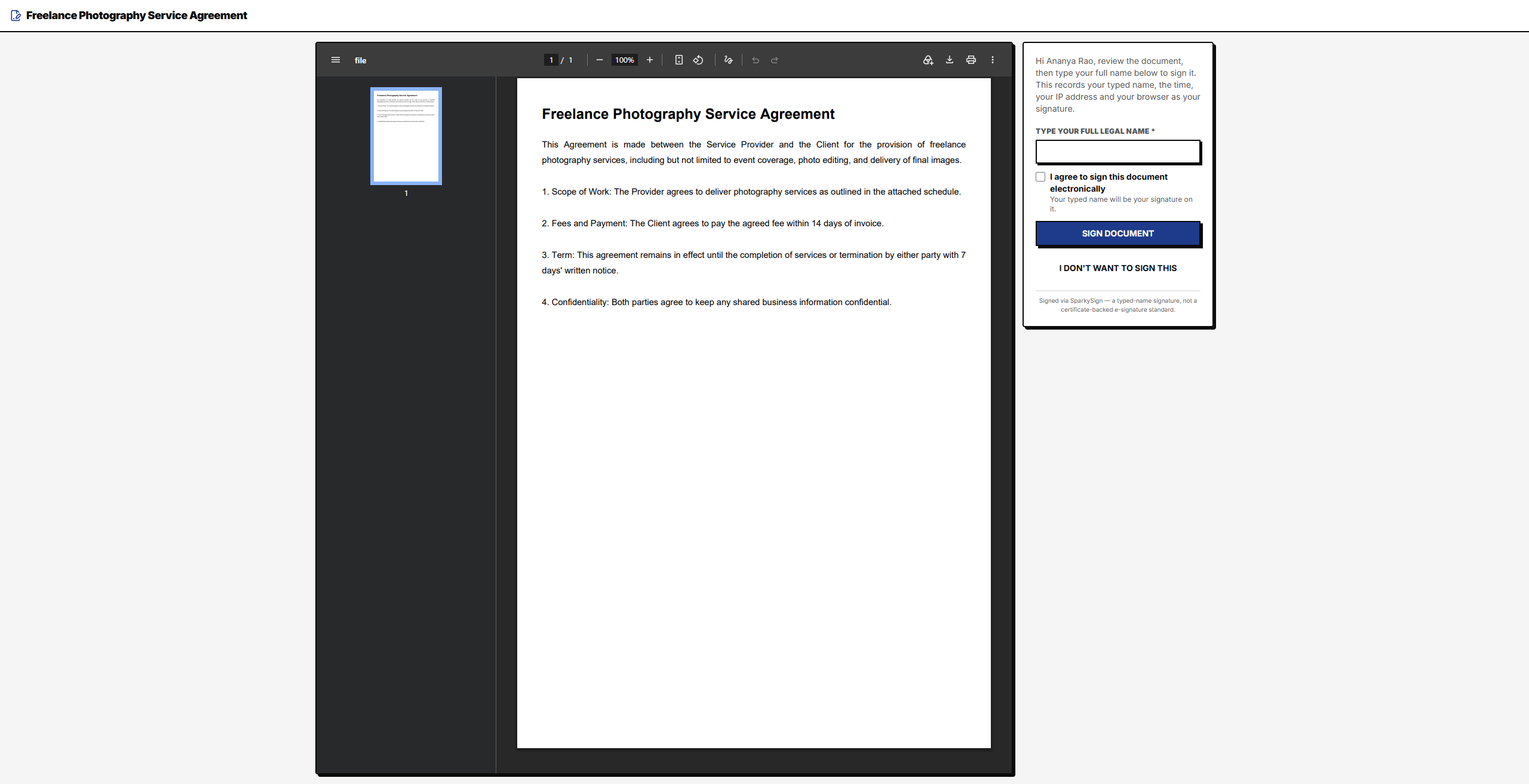
They can decline instead, and give a reason, which you will see on the document.
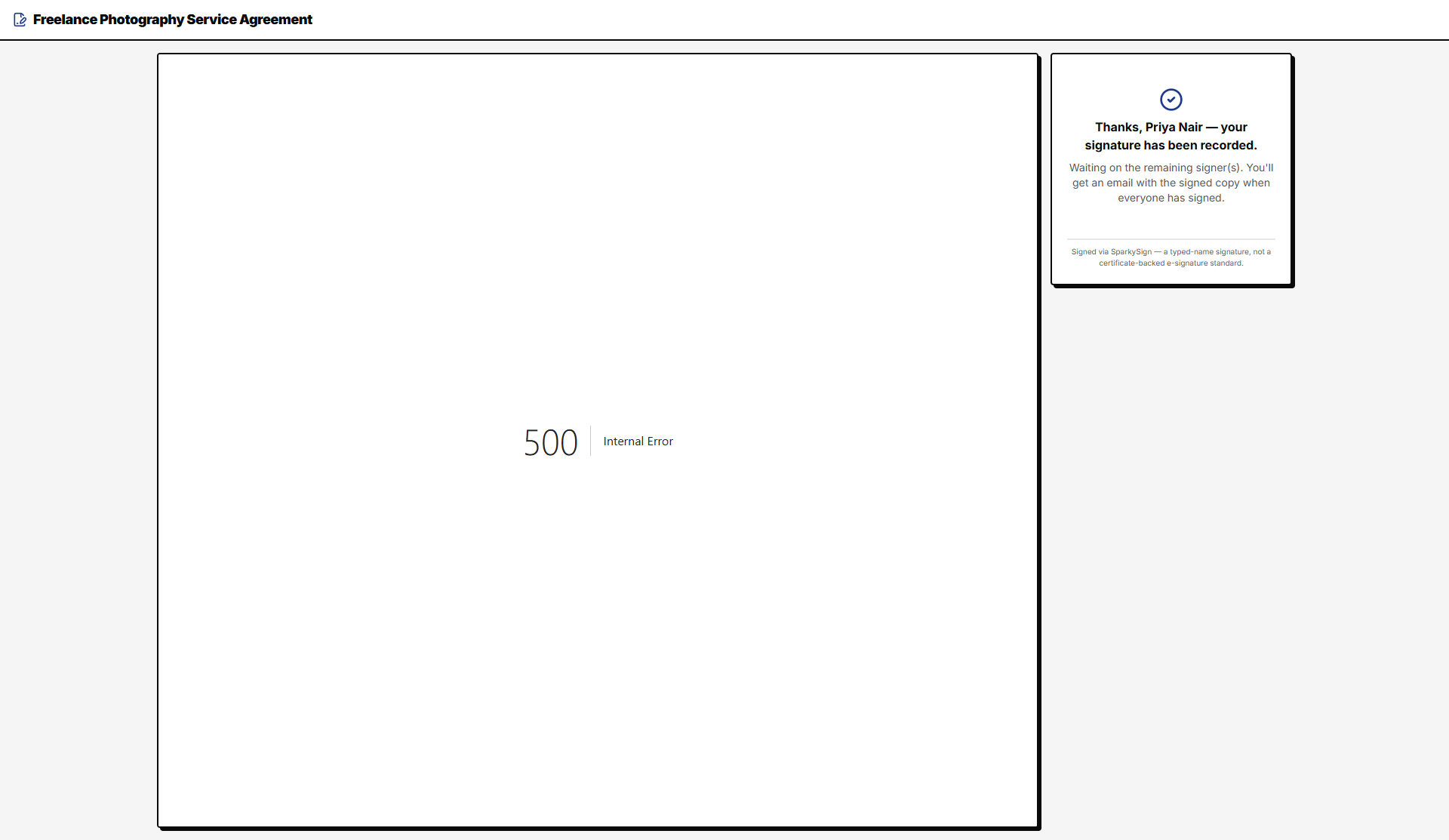
When several people sign one document, each can sign only after those listed before them; until then their link shows who it is waiting on.
What everyone receives
Once the last person has signed, the sender and every signer are emailed a link to view and download the signed PDF. Each page carries a line at the bottom with the document ID and a verify link.
How to check a signed copy
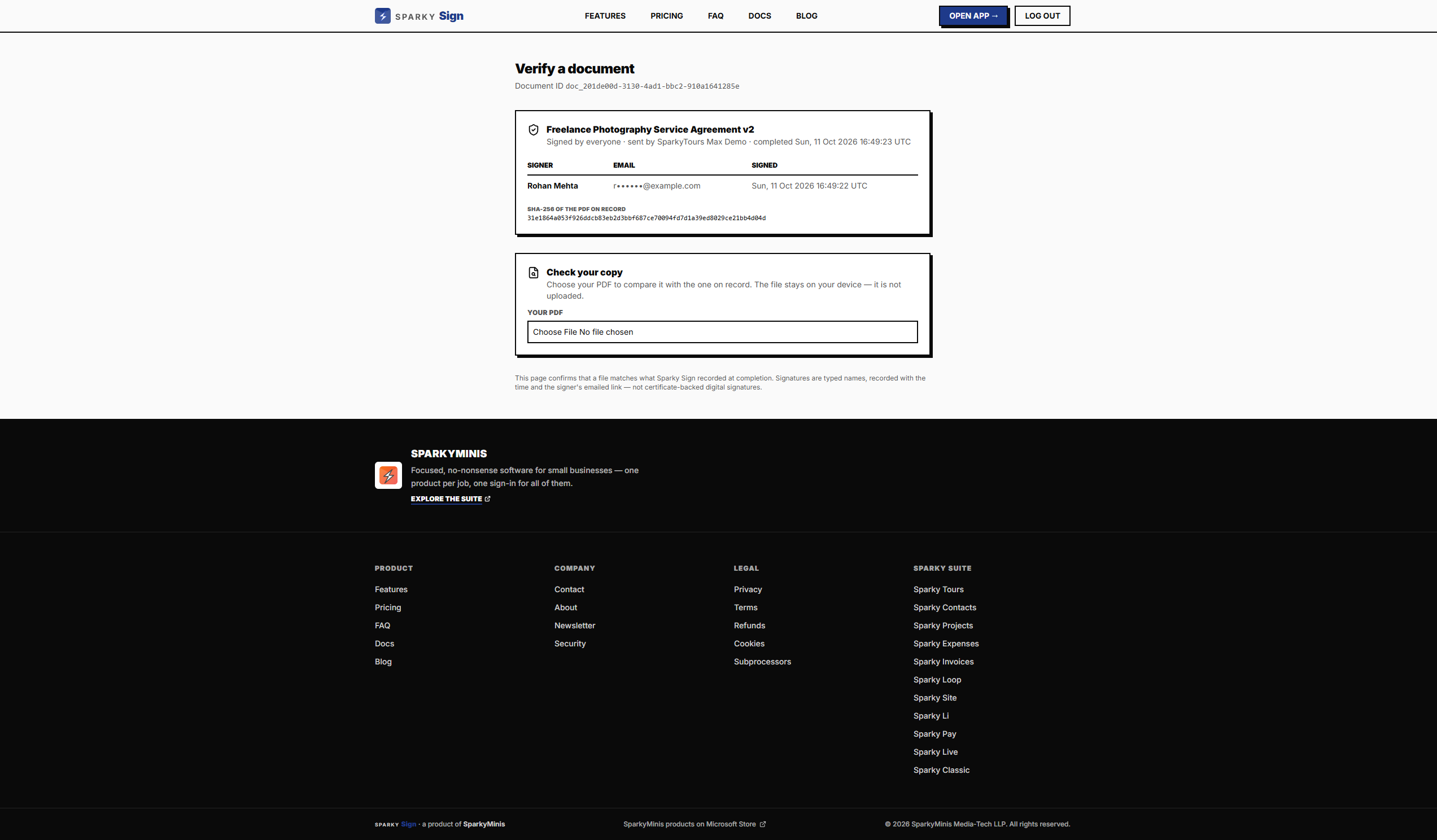
Open the verify link printed on the document. The page shows the document's title, when it was completed and who signed. To confirm that a PDF you hold is the genuine one, drop the file onto the page: it is compared with the copy on record, and you are told whether it matches. The check happens in your browser; the file is not uploaded.
The Certificate of Completion
A separate one-page record for the sender: each signer's name and email, when they opened and signed, the address they signed from, and the fingerprint of the final PDF.
What kind of signature this is
A typed name, tied to the email address the link was sent to, with the time, the address it came from and the signer's agreement to sign electronically all recorded. It is not a certificate-based digital signature, and some documents are required by law to be signed on paper or with one. Check what applies to yours.