
Documents
Everything you have written, sent or issued, with where each one stands.
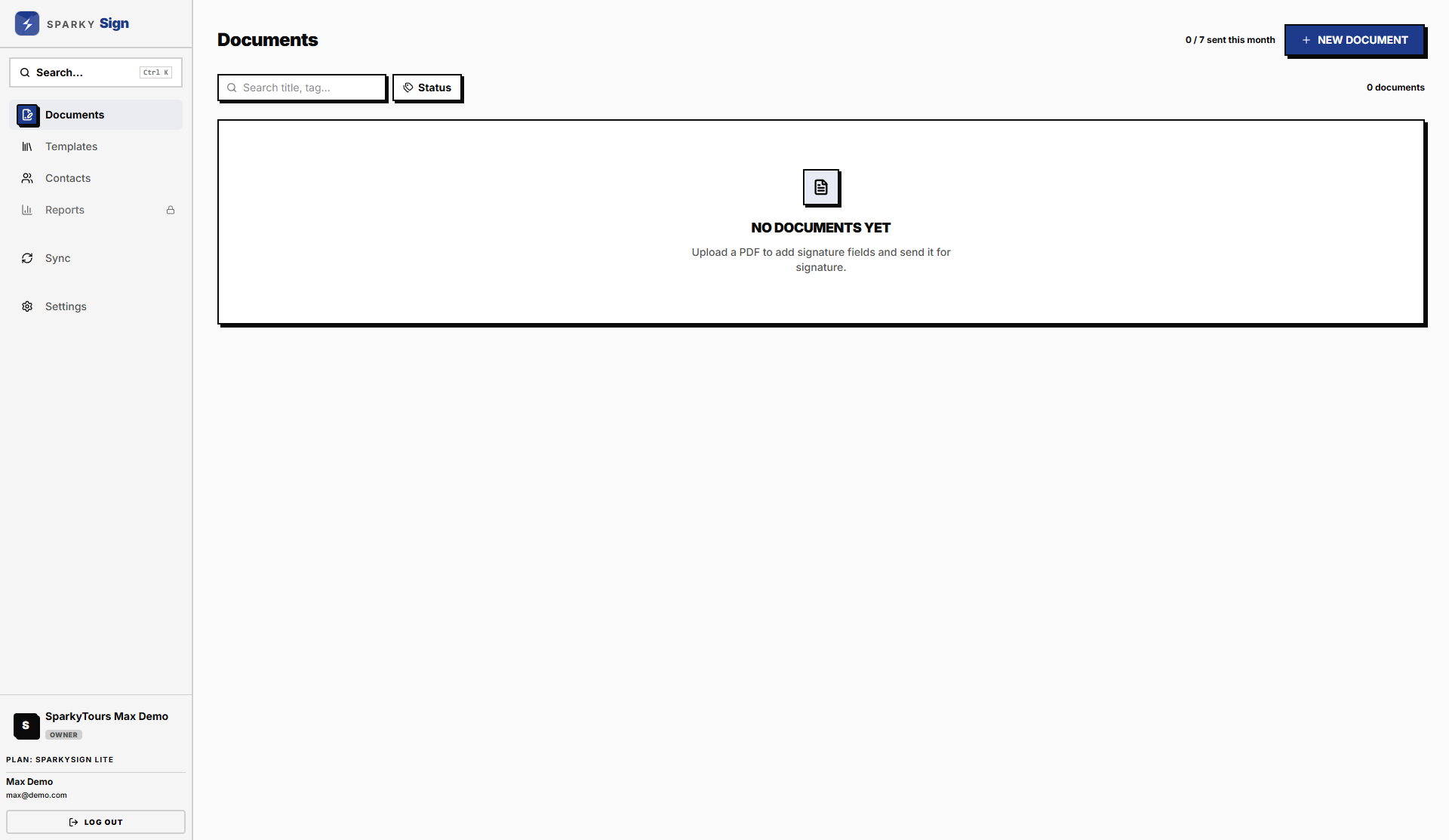
How to find a document
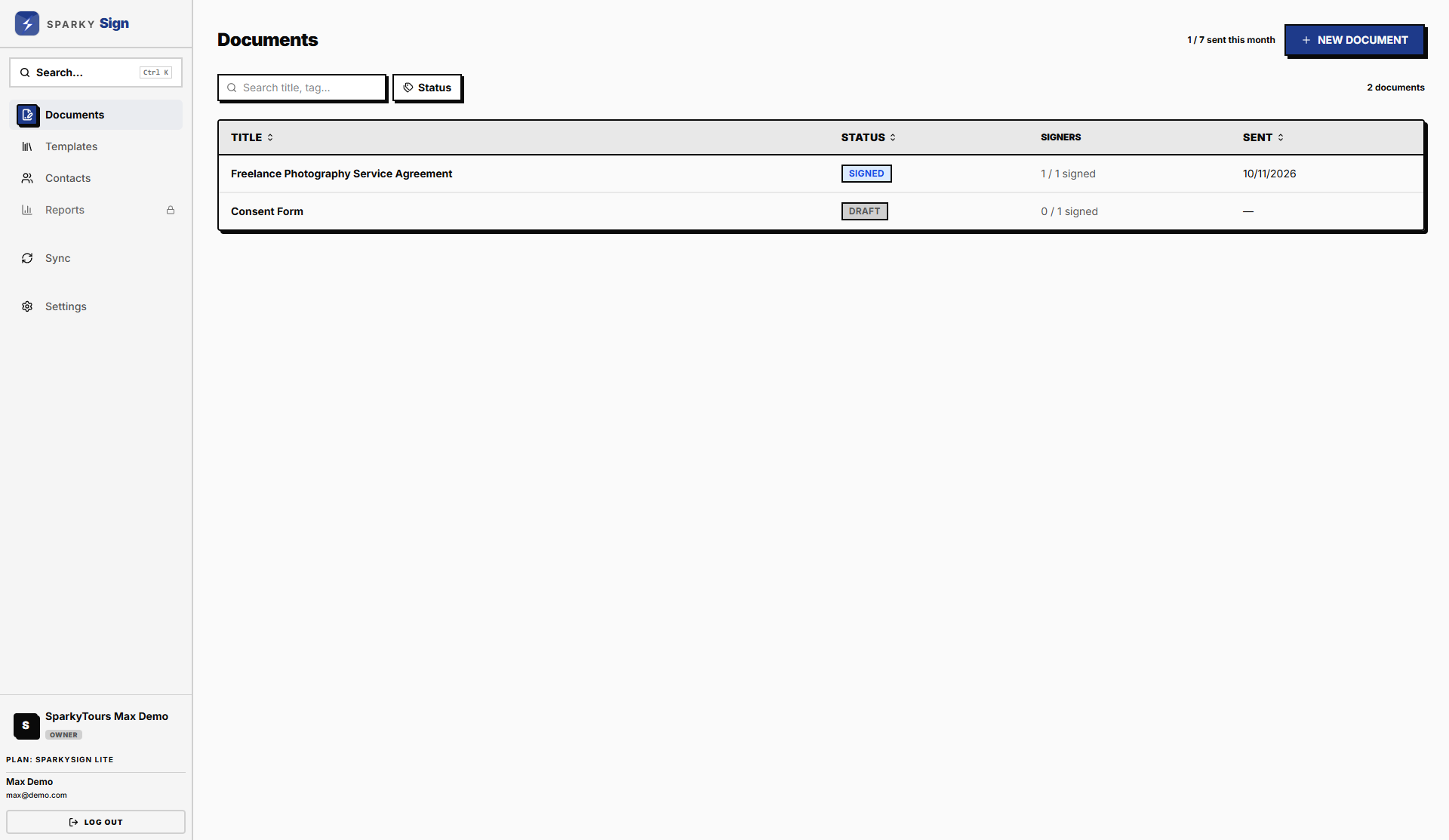
Open Documents from the sidebar. Search by title or tag, filter by status, and sort by title, status or the date it was sent. If you are an owner, admin or manager you see every document in your organization; otherwise you see the ones you created.
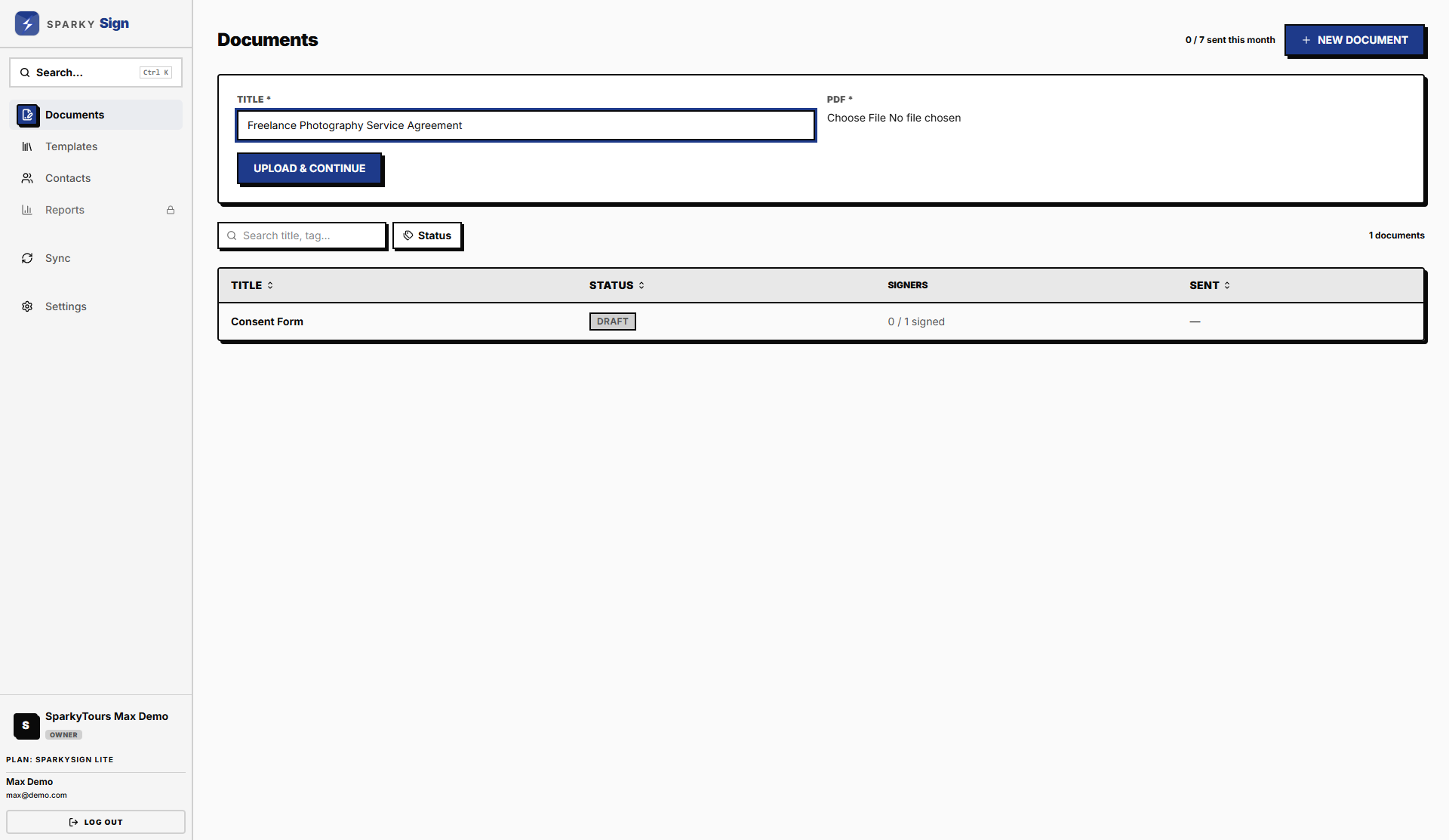
How to start a document
Choose New Document, give it a title, and upload a PDF. To write one from a template instead, open Templates, pick a template and choose New Document there.
How to fill in a document made from a template
The document page shows a form with one box for each detail the template asks for, such as a name, a date or an amount. Fill them in and choose Save Details. The preview underneath updates as you type, and any gap still waiting for a value is outlined. Preview PDF opens the document exactly as it will be sent, using the details you last saved.
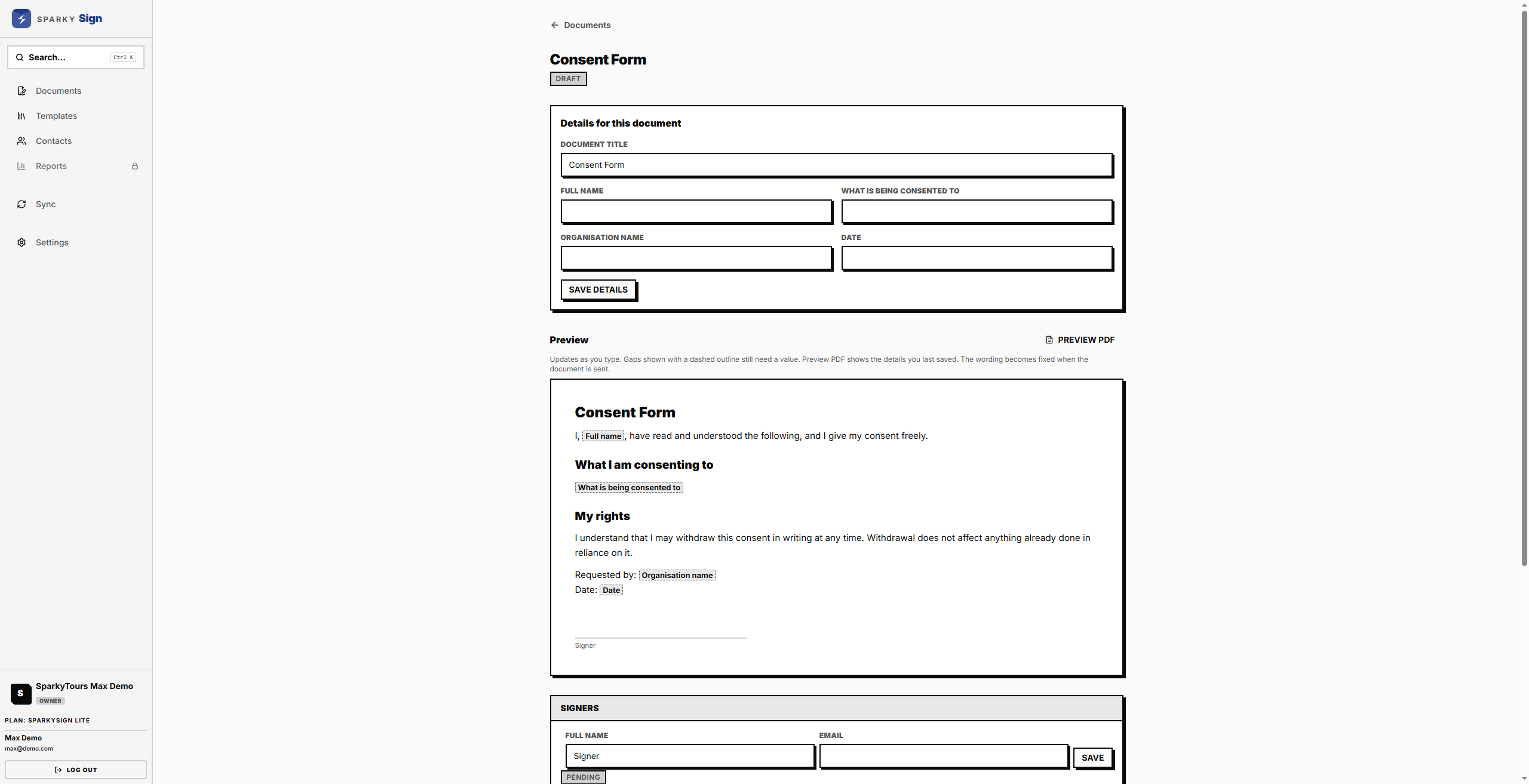
The wording becomes fixed when the document is sent. Later changes to the template do not change documents already made from it.
How to add the people who sign
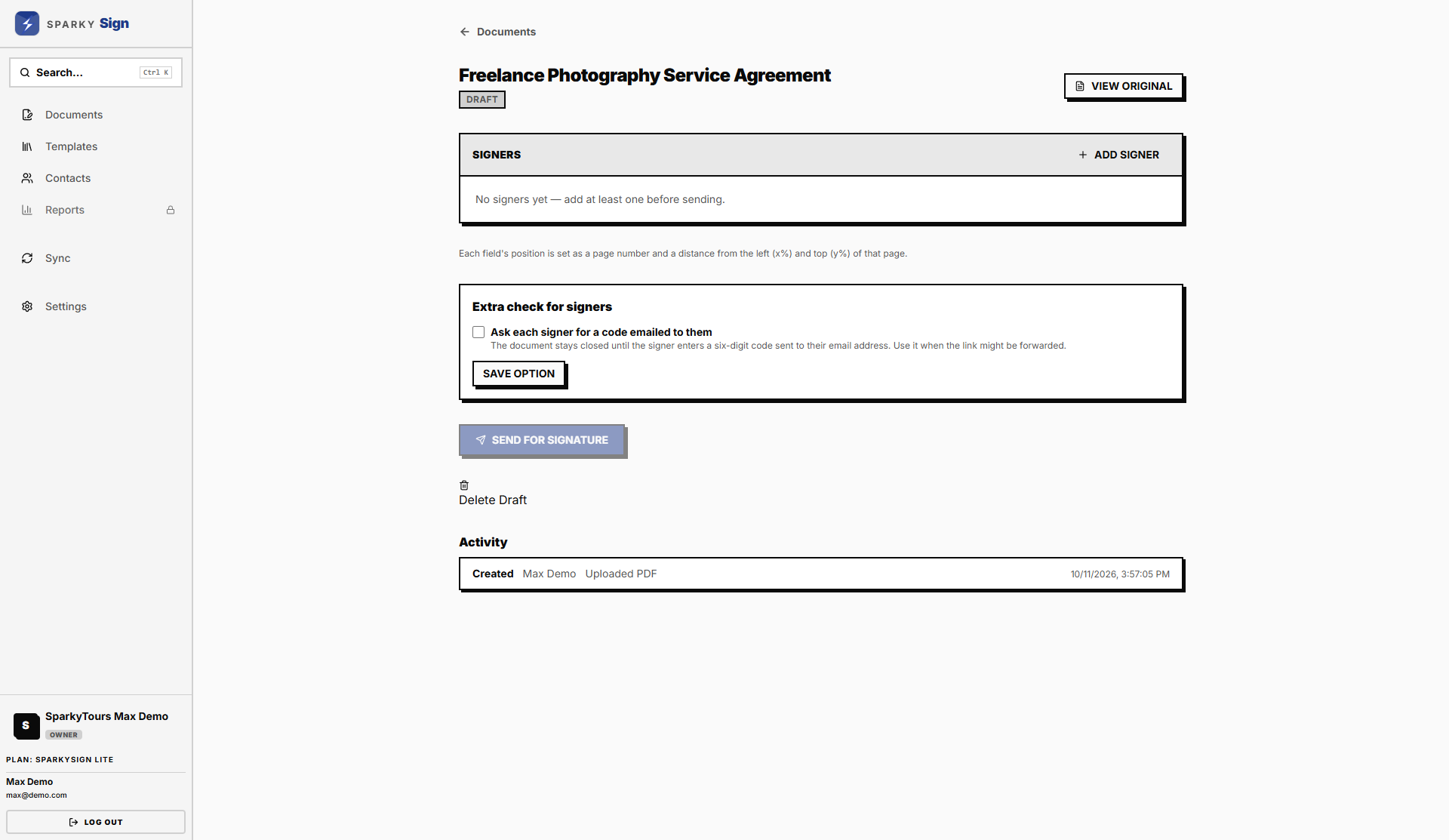
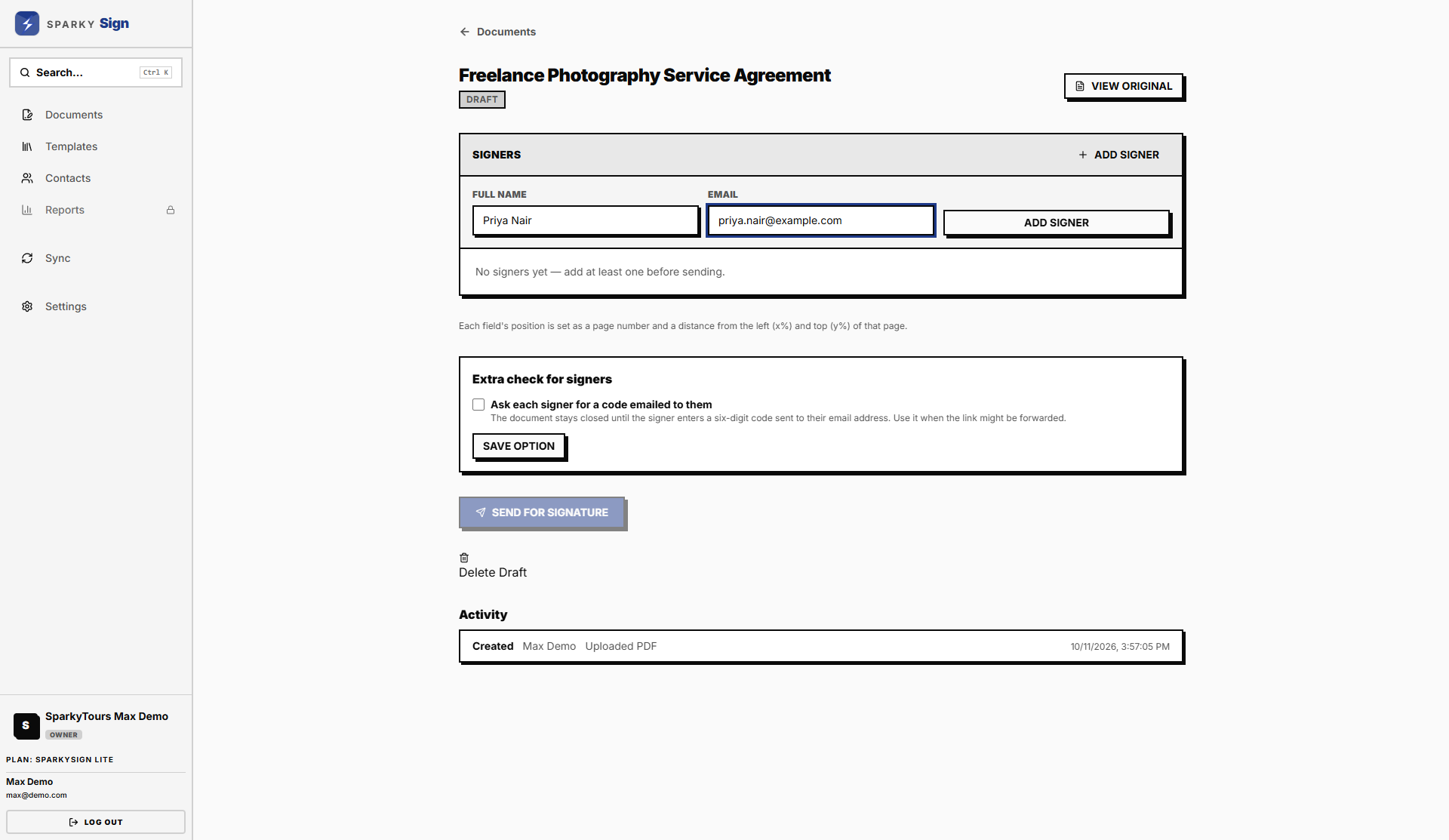
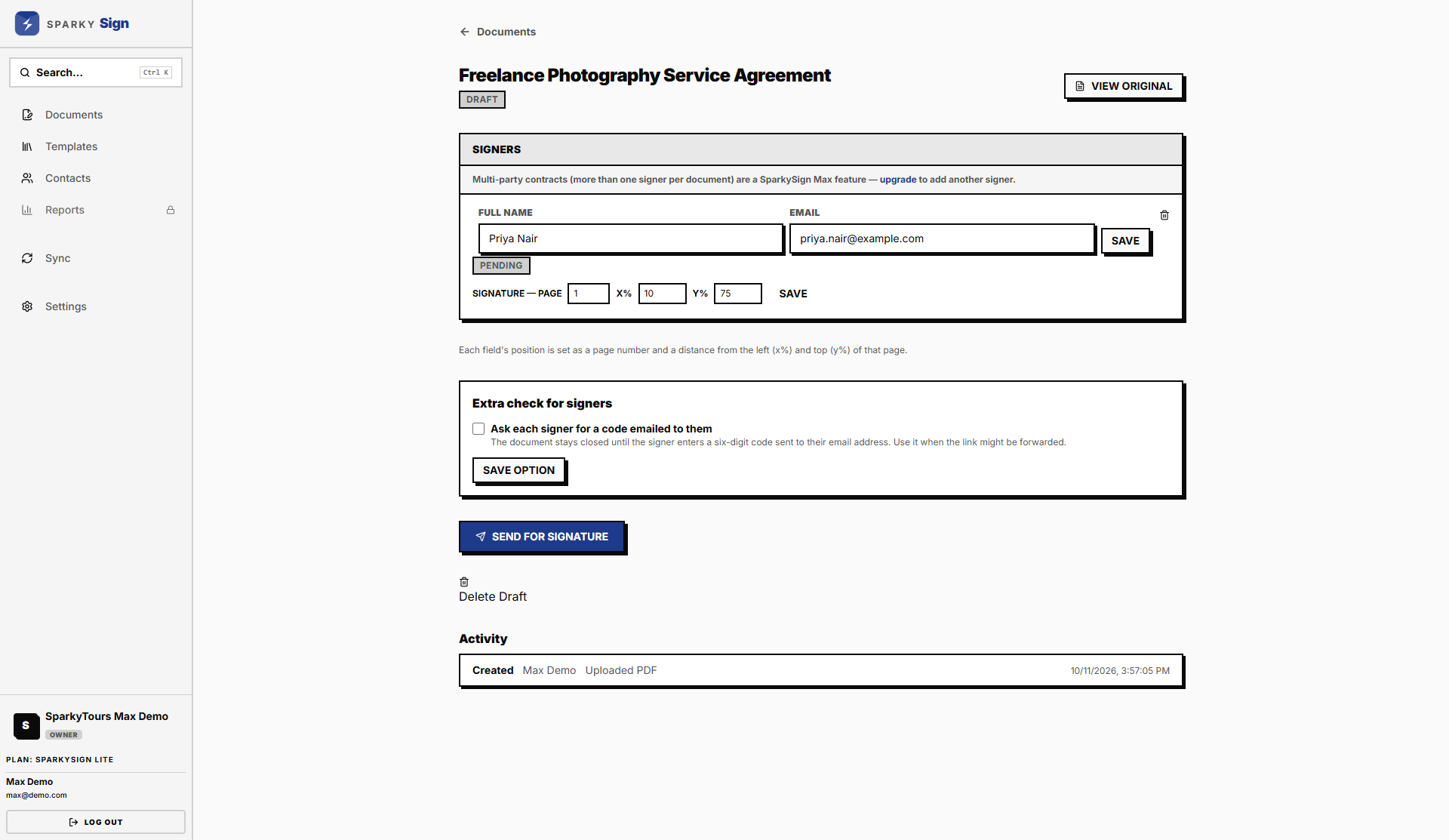
Under Signers, add each person's name and email. Start typing to pick someone from your contacts. A document made from a template already has one signer for each signature block; open each one and fill in who it is.
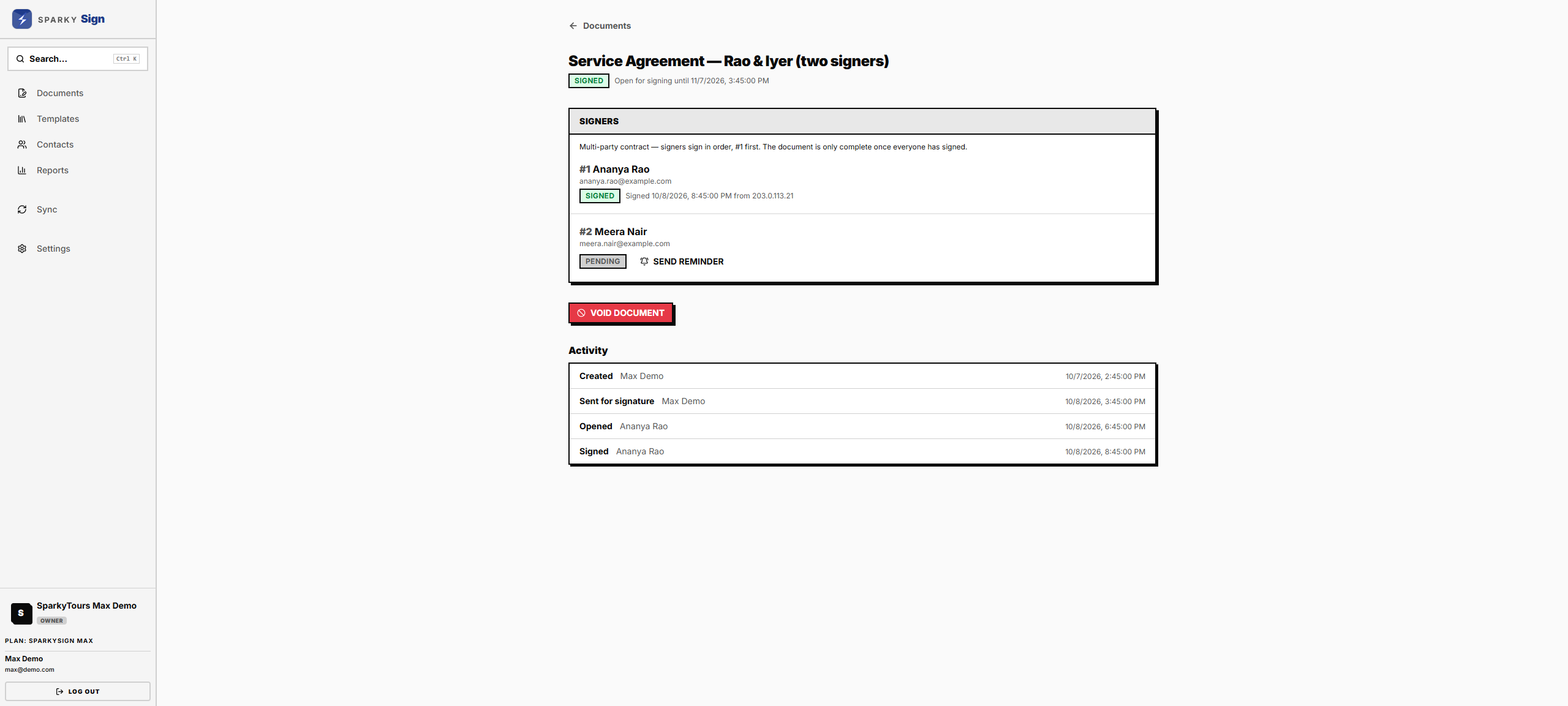
Lite and Plus allow one signer on a document. Max allows up to five. Everyone gets their link at once, but each person can sign only after those listed before them have signed.
How to send it
Choose Send. Each signer gets an email with a link. Before sending you can ask signers to confirm a code sent to their email before they can sign.
If your organization has set a number of days to sign (see Settings), the document closes after that if not everyone has signed.
A template with no signature block has nobody to sign it. Sending it issues the document instead: it is finalised straight away with its own document ID and verify link.
Every plan has a monthly limit on documents sent: 7 on Lite, 25 on Plus, 100 on Max. Drafts do not count.
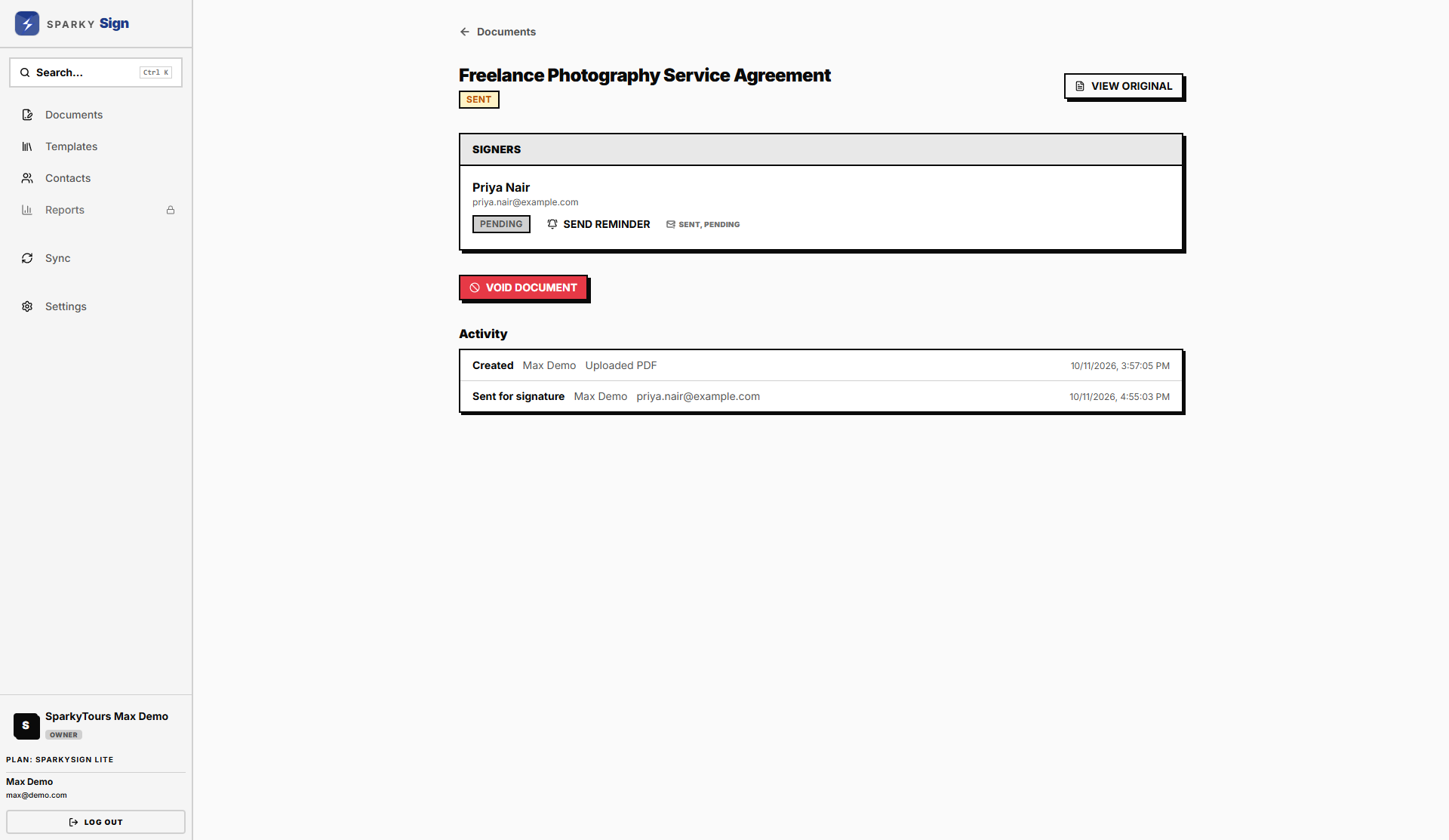
How to follow a document after sending
The document page shows each signer's status, and an activity record of everything that has happened: sent, opened, signed, declined, reminded. Choose Remind to email a signer again.
When everyone has signed, the document is completed. You can then open or download the signed PDF and the Certificate of Completion, which lists who signed, when, and from which address.
How to void or delete a document
- Void cancels a document that is out for signature. Signatures already given stay on record, but nobody else can sign. Owners, admins and managers can void.
- Delete removes a draft or a document that was never sent. You can delete your own; owners, admins and managers can delete anyone's. A document that has been sent cannot be deleted.
If a signer declines
The document shows as declined, with the reason they gave. Start a new document to send a corrected version.